For Owners
Administrative capabilities for Organization Owners
Last updated: 26 March 2026
Organization Management (For Owners)
As an Organization Owner, you have full control over the workspace and access to all features within the dashboard. You can manage your organization's details and its members ensuring your team has the right access.
Managing Organization Details
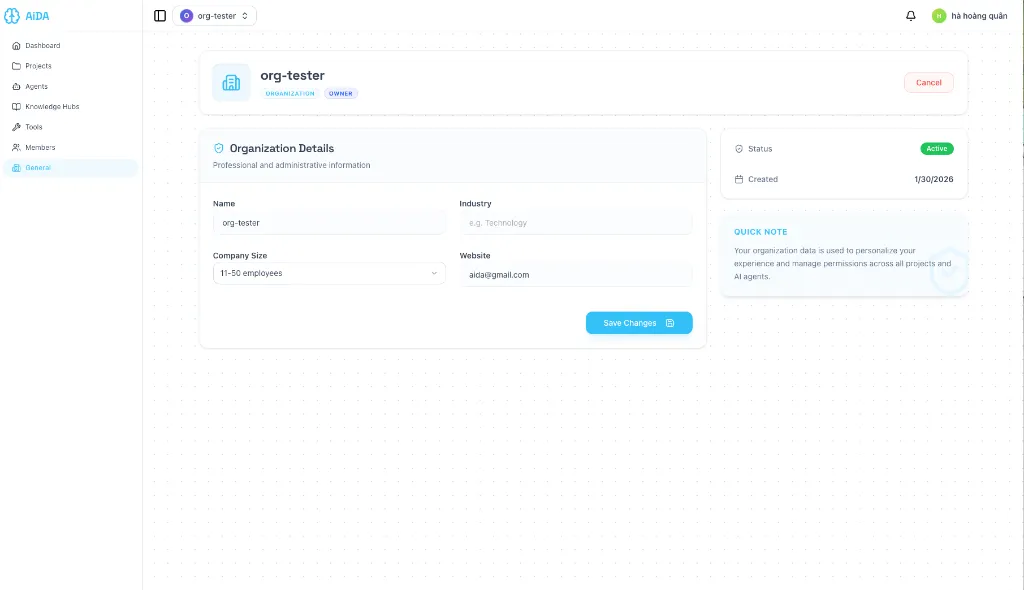
As an owner, you have Full Editing capabilities for your organization's profile.
- Navigate to General in the sidebar.
- Click the Edit Details button to enable editing mode.
- Update any information such as Organization Name, Industry, Company Size, or Website URL.
- Click Save Changes to apply your updates.
Project Management
Owners have exclusive access to create and manage projects. Projects serve as containers for your AI agents and knowledge hubs.
Create & Manage Projects: Learn how to create and configure projects in the Project Management Guide.
Embed an Agent: Learn how to embed an AI agent as a chat widget on your website in the Embedding an Agent Guide.
Managing Members
Owners can grow their team by inviting new members, editing roles, and managing membership status.
Inviting Team Members
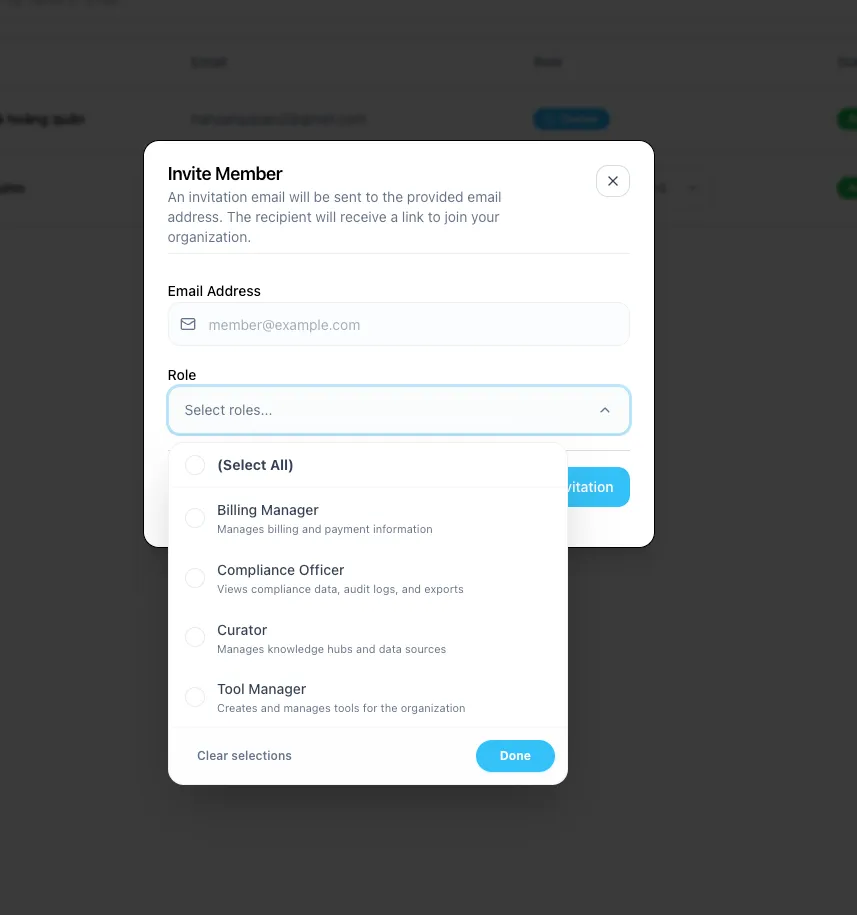
You can invite people to your organization by their email address and assign them specific roles.
- Go to the Members section in the sidebar.
- Click the Invite Member button.
- Enter the user's Email Address.
- Select Roles: Choose one or more roles for the user. Available roles include:
- Billing Manager: Manages billing and payment information.
- Compliance Officer: Views compliance data, audit logs, and exports.
- Curator: Manages knowledge hubs and data sources.
- Tool Manager: Creates and manages tools for the organization.
- Organization Member: Basic access to project collaboration.
- Click Send Invitation.
Managing Existing Members
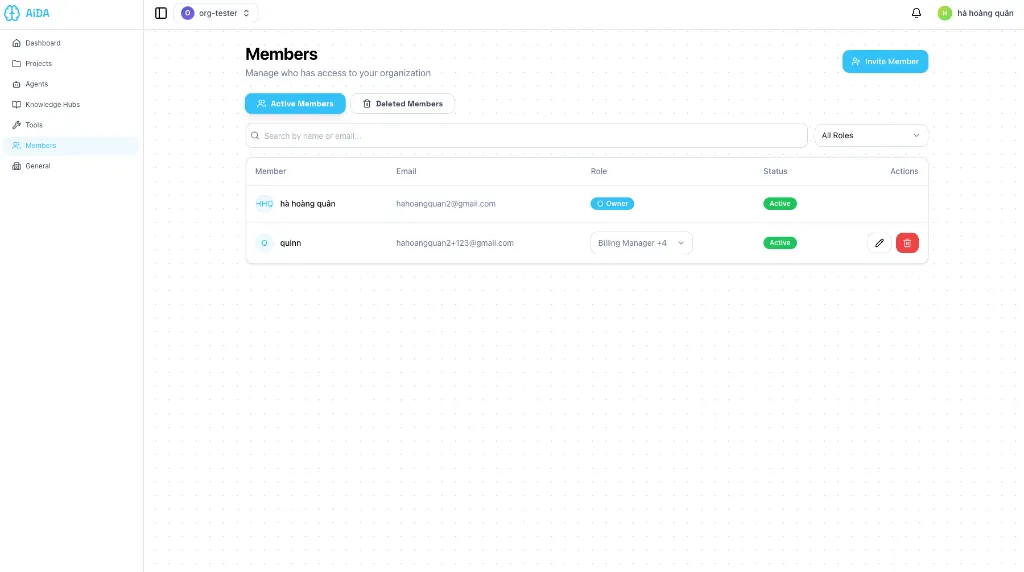
In the Members list, you have several tools to manage your team:
-
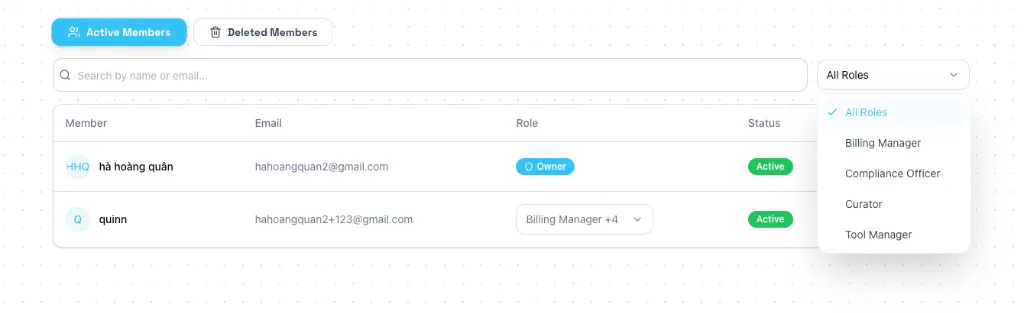
Filter and Search: Use the search bar to find members by name or email, or use the All Roles dropdown to filter members by their assigned roles.
-
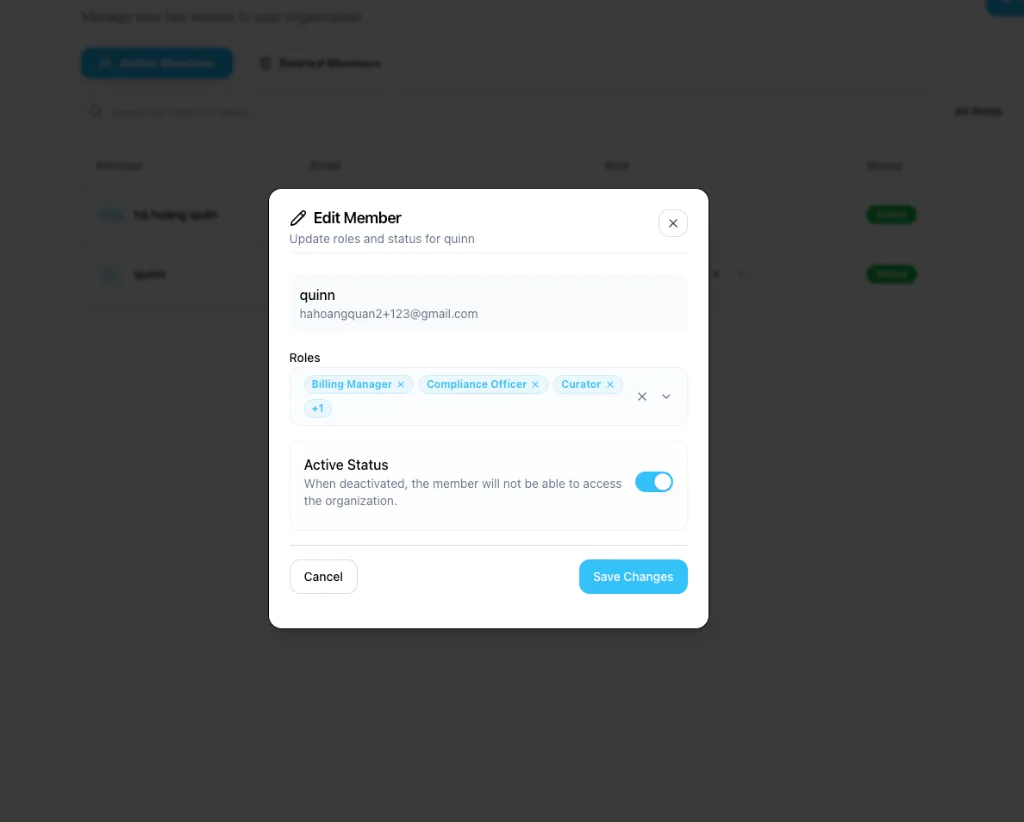
Edit Member: Click the Edit (pencil icon) to update a member's roles or change their active status.
-
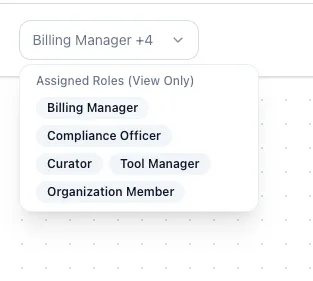
View Assigned Roles: Hover over or click on the roles badge in the list to see a full list of roles assigned to that member.
Deleting and Restoring Members
If a member no longer needs access, you can remove them from the organization.
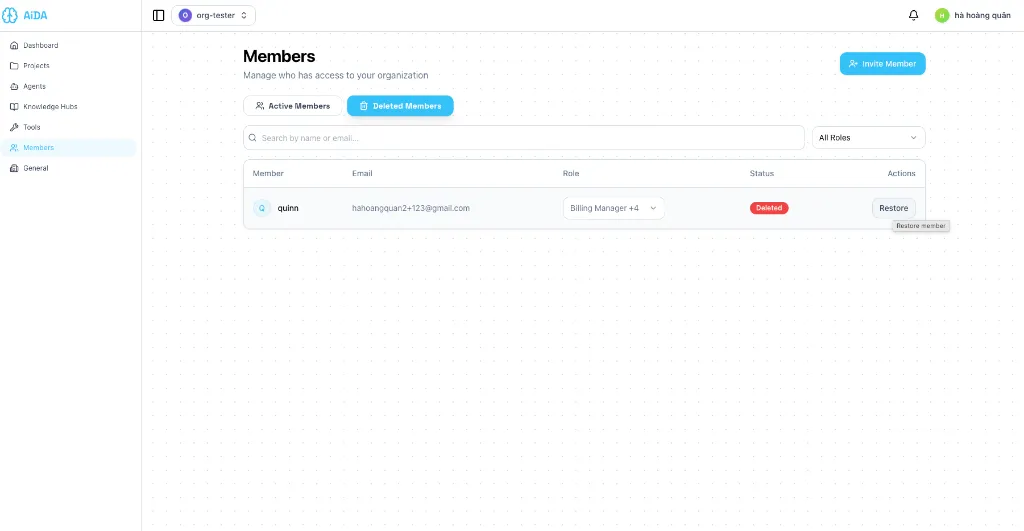
- Remove Member: Use the Delete (trash icon) on the member row to move them to the deleted list.
- Restore Member: Switch to the Deleted Members tab to view inactive members. Click Restore to reactivate their account and access.