Features for Members
Organization features available to standard members
Last updated: 26 March 2026
Features for Members
As a Member of an organization, you have access to collaborate and view resources, but your administrative capabilities are limited compared to an Owner.
Joining via Invitation
If your team is already on AIDA, an administrator can invite you to their organization.
Notifications
When you are invited to an organization or a specific project, you will receive a notification within the platform.
-
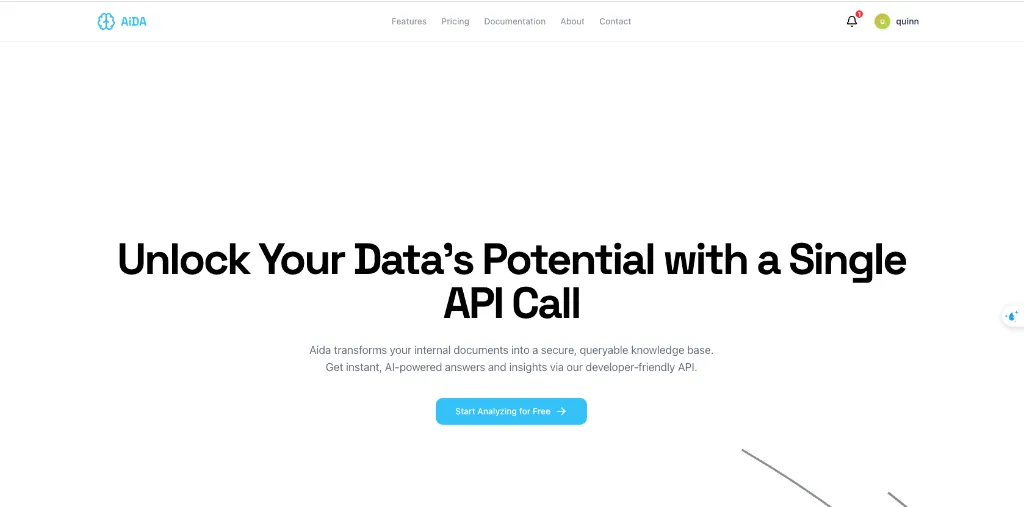
Look for the Bell icon in the top-right corner of the header. A red dot indicates you have new activity.
-
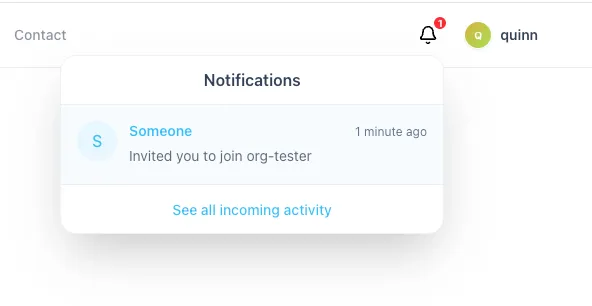
Click the icon to open the Notifications panel. You will see invitations listed here.
-
Click on the invitation notification to view its details.
-
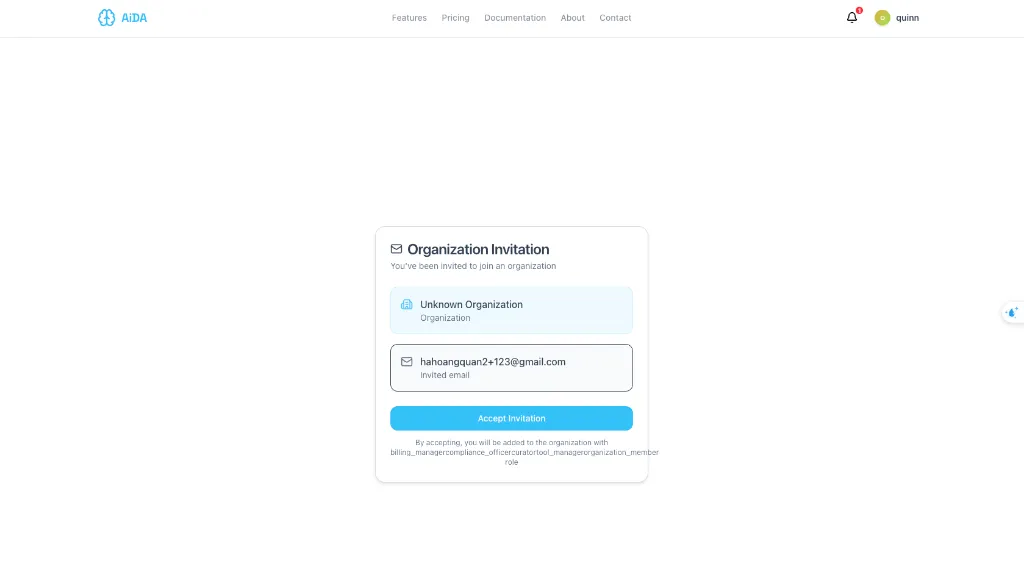
On the Organization Invitation screen, review the details and click Accept Invitation to join the workspace.
-
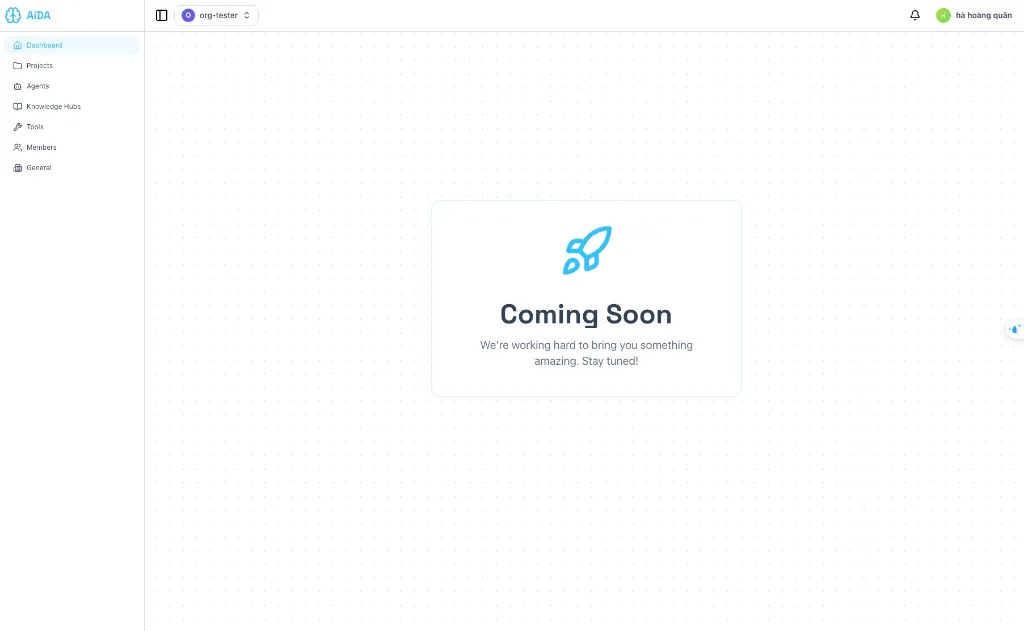
After accepting, you will be automatically redirected to the organization dashboard.
Viewing Organization Details
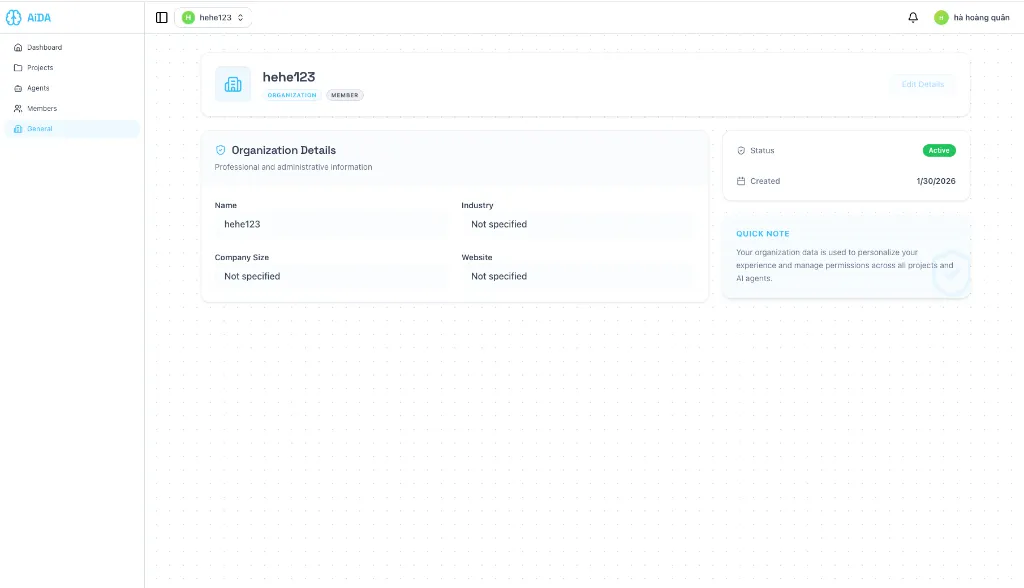
Members can view the organization's information but cannot edit it.
-
Navigate to General in the sidebar.
-
You will see the organization's profile details in Read-Only mode.
Viewing Team Members
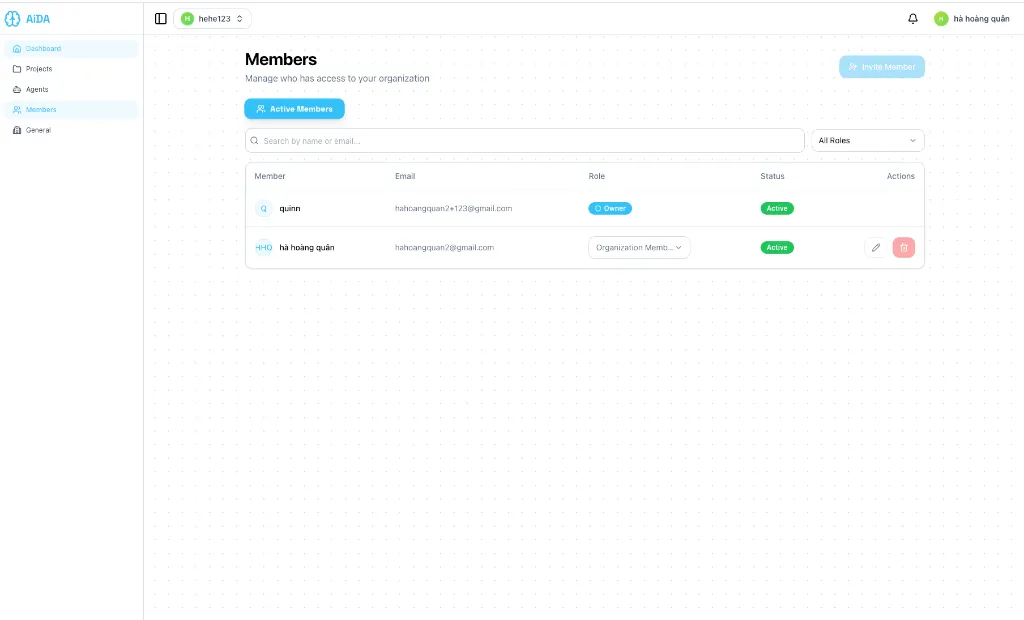
You can see who else is in the organization with you.
-
Navigate to Members in the sidebar.
-
You can view the list of all active members in the organization.
-
Note: You cannot invite new members or change permissions of existing ones.
Leaving an Organization
If you no longer wish to be part of an organization:
- Navigate to General (or Settings).
- Look for the Leave Organization option (usually located at the bottom of the page or in a danger zone section).
- Confirm your decision to leave the workspace.