Getting Started
How to create an account and log in to AIDA
Last updated: 26 March 2026
This guide covers how to create an account and log in to the AIDA platform.
Sign Up
To start using AIDA, you need to create a personal account.
- Navigate to the Sign Up page (or click here).
- Complete the registration form with the following details:
- Full Name: Your legal name or display name (Required).
- Email: A valid email address (Required). This will be used for verification and login.
- Password: Must be at least 8 characters long (Required).
- Confirm Password: Re-enter your password to ensure accuracy (Required).
- Invitation Code: A valid code provided by your administrator (Required).
- Click Sign Up.
Verification
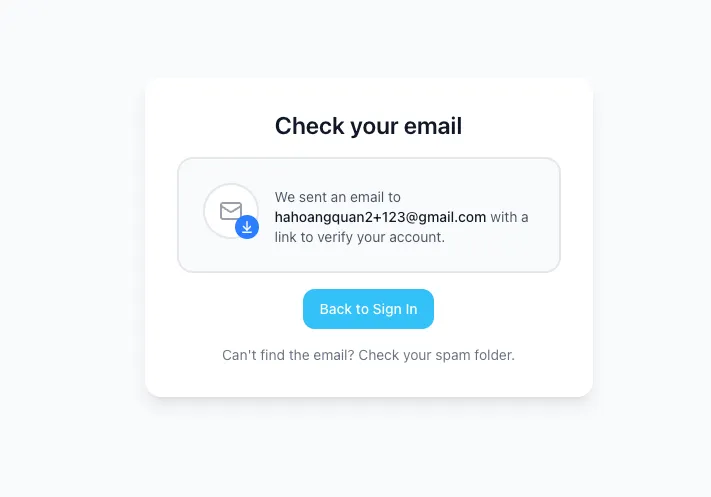
After a successful submission, you will see a "Check your email" confirmation screen.
-
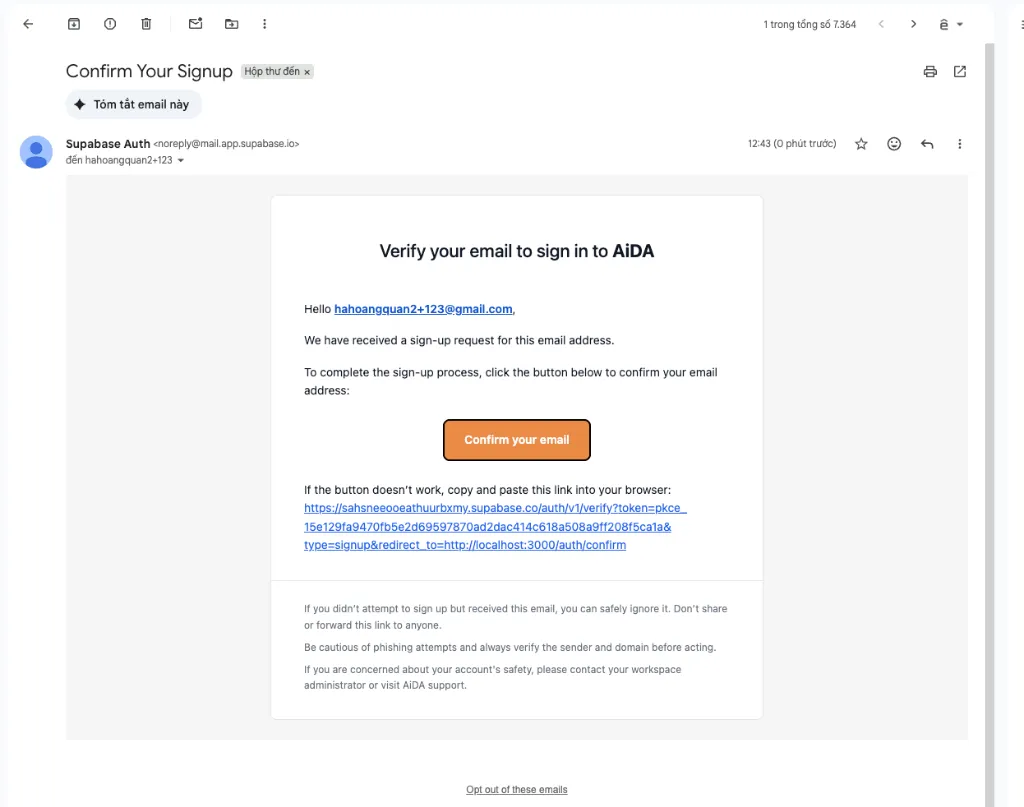
Check your Inbox: Look for an email from AIDA (or Supabase Auth) with the subject "Confirm Your Signup".
-
Click Confirm: Click the Confirm your email button inside the message.
- Note: This link is valid for a limited time (typically 24 hours). If it expires, you may need to request a new one.
-
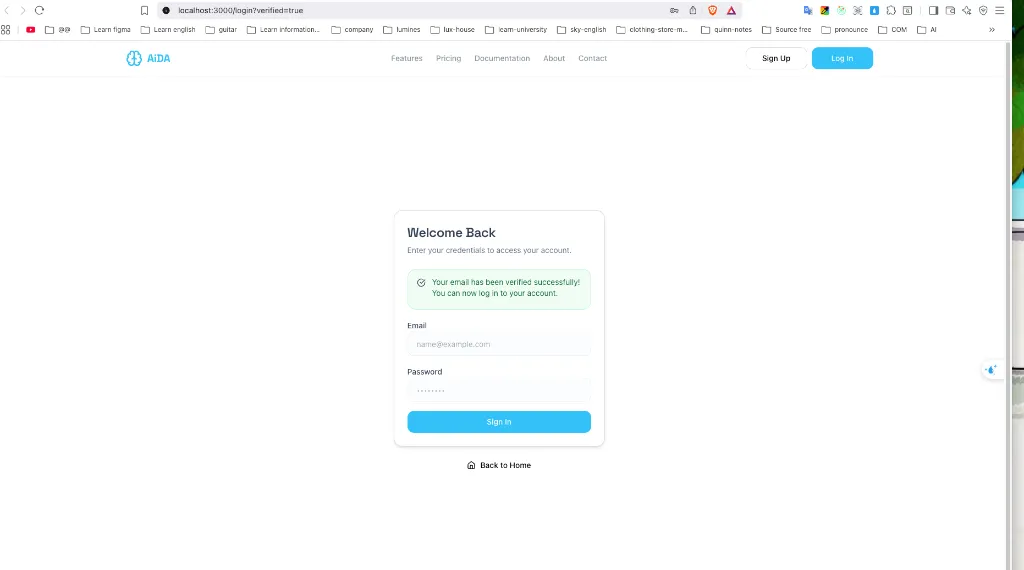
Login: You will be redirected back to the Login page. A success message "Your email has been verified successfully" will appear.
-
You can now enter your credentials to access your account.
Important: You cannot log in until you have verified your email address. If you don't see the email, check your Spam/Junk folder.
Log In
Access your account securely.
-
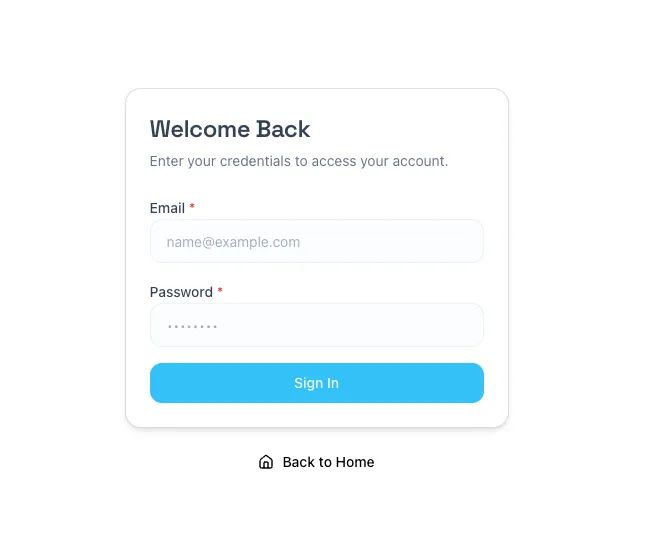
Navigate to the Login page (or click here).
-
Enter your credentials:
- Email: The address you registered with.
- Password: Your account password.
-
Click Sign In to access your dashboard.
Troubleshooting
- Session Expired: If you are inactive for a long period, your session may expire for security reasons. You will be redirected to the login page with a notification.
- Verification Status: If you see a "Verification Successful" message, your account is ready to use.
Next Steps
Now that you've logged in, you can manage your account settings or proceed to set up your workspace.